![cdccd4037784792b954880028bbf7390a34ca91e-2.png]](https://support.eddy.com/hs-fs/hubfs/cdccd4037784792b954880028bbf7390a34ca91e-2.png?height=40&name=cdccd4037784792b954880028bbf7390a34ca91e-2.png)
Who Can Do This
This action is available to users with the HR admin role.
Before You Begin
A location cannot be closed if it has any of the following assigned to it:
- People (including inactive or terminated employees)
- Jobs
- Shift schedules
You must resolve all of the above before proceeding. For people, this means either reassigning them to a different location or terminating them in Eddy. Jobs and shift schedules must be moved to a different location. If you attempt to close a location that still has any of these assigned, Eddy will display a warning and prevent the action.
How to Close a Location
- Navigate to Admin Settings.
- Click the Company Info tab.
- In the left sidebar, select Locations.
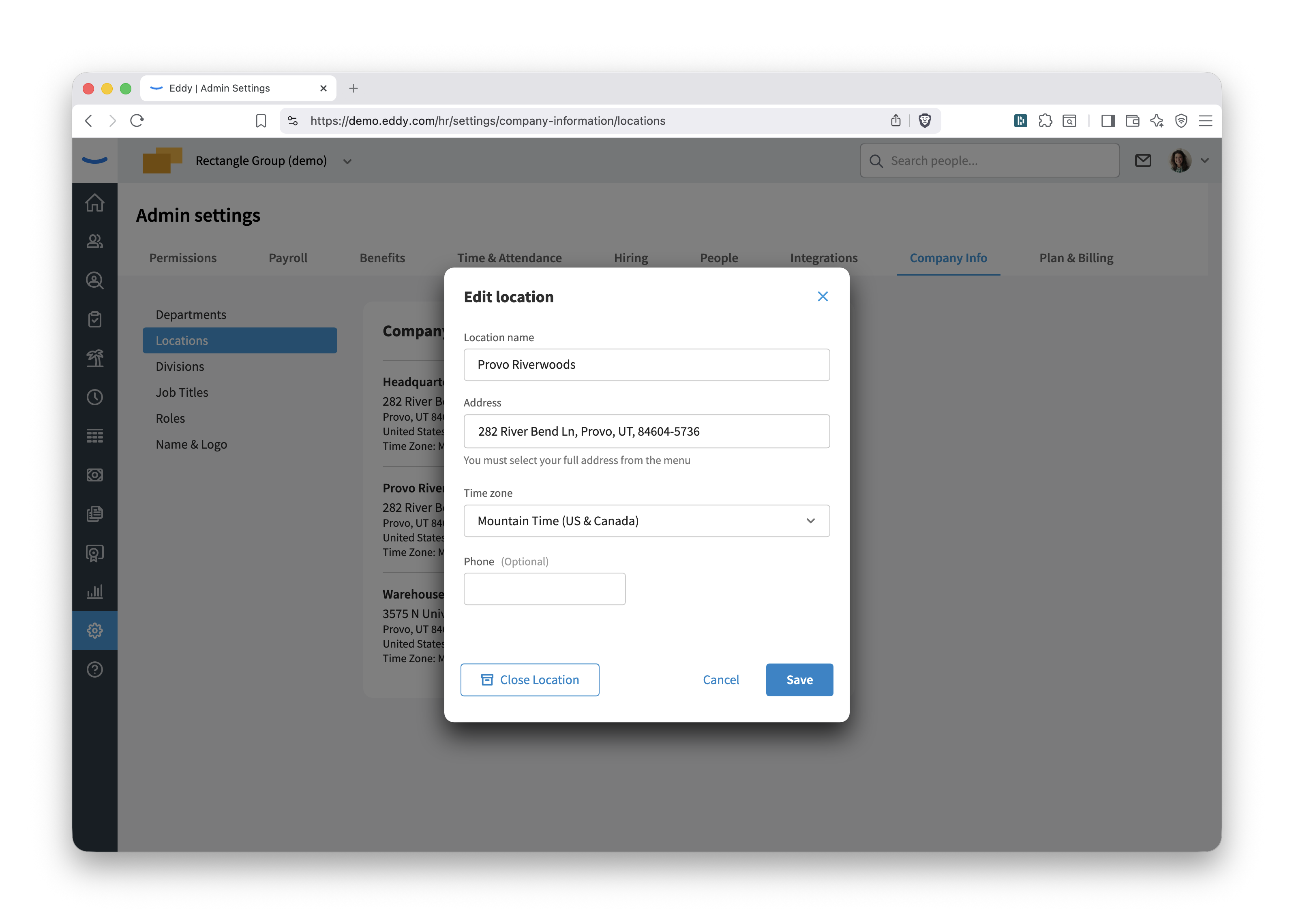
- Find the location you want to close and click the pencil (edit) icon to the right of it.
- In the Edit location dialog, click Close Location.
- If the location has people, jobs, or shift schedules still assigned to it, a warning message will appear. Reassign those records to a different location before trying again.
- Once all records have been moved, click Close Location to confirm.
Frequently Asked Questions
Can I reopen a closed location? A closed location cannot be reopened, but it can be added as a new location. Eddy will remember the info from the closed location for tax purposes.
What happens to employees assigned to a closed location? Employees must be moved to an active location before the location can be closed. No employee records are deleted when a location is closed.
Will closing a location affect payroll? No. Eddy stores all the location info for payroll and tax purposes.