![cdccd4037784792b954880028bbf7390a34ca91e-2.png]](https://support.eddy.com/hs-fs/hubfs/cdccd4037784792b954880028bbf7390a34ca91e-2.png?height=40&name=cdccd4037784792b954880028bbf7390a34ca91e-2.png)
💡 Tip: Support may ask for your version number when troubleshooting. It's a good idea to have it ready before reaching out to the Eddy support team.
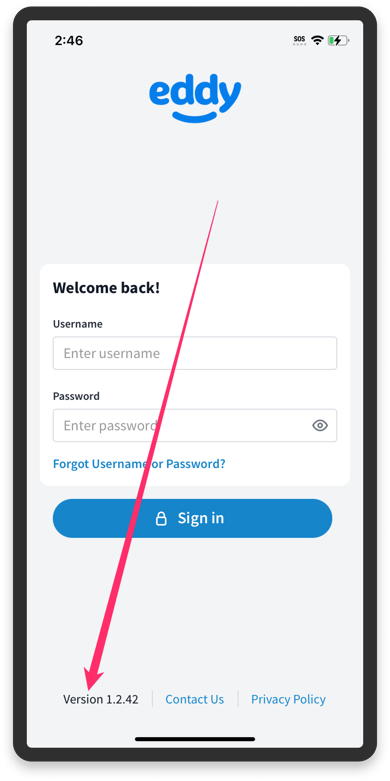
How to Find the Version Number (on login page)
The version number is shown on the bottom of the login page.
How to Find the Version Number (Already logged in)
- Open the Eddy app on your mobile device. Log in with your username and password if prompted.
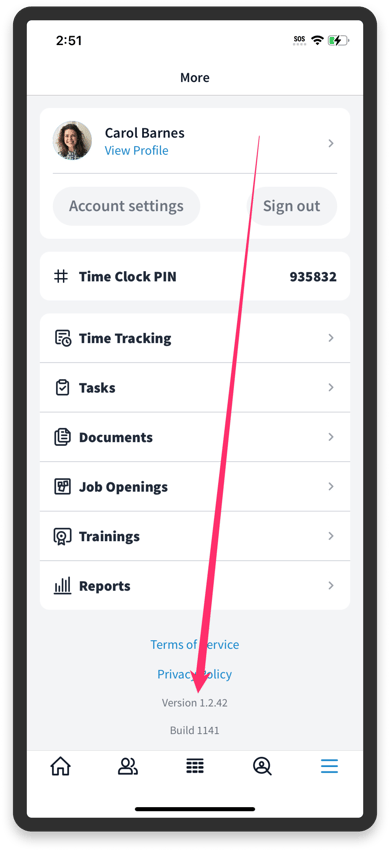
- Tap the More icon (☰) in the bottom-right corner of the navigation bar.
- Scroll to the bottom of the More screen, past the menu items (Time Tracking, Tasks, Documents, Job Openings, Trainings, Reports) and the Terms of Service and Privacy Policy links.
- Locate the version and build number displayed in gray text at the very bottom of the screen:
- Version X.X.XX — the app version number
- Build XXXX — the internal build number
Version 1.2.42andBuild 1141
Frequently Asked Questions
Why can't I see a version number? Make sure you are fully scrolled to the bottom of the More screen. The version information appears below the Privacy Policy link and may require additional scrolling on smaller devices.
What's the difference between the version number and the build number? The version number (e.g., 1.2.42) is the public release version visible in the App Store or Google Play. The build number (e.g., 1141) is an internal identifier used by developers and support teams. When contacting support, sharing both numbers is helpful.
How do I update the Eddy app to the latest version? Visit the App Store (iOS) or Google Play Store (Android), search for Eddy, and tap Update if one is available.