![cdccd4037784792b954880028bbf7390a34ca91e-2.png]](https://support.eddy.com/hs-fs/hubfs/cdccd4037784792b954880028bbf7390a34ca91e-2.png?height=40&name=cdccd4037784792b954880028bbf7390a34ca91e-2.png)
Before You Begin
You must have the Owner role to add someone from another company. This option does not appear for admins or other roles.
A few things to know about how roles carry over:
- The worker keeps their existing roles in their other companies. By default, they're added to the new company as an employee.
- If the worker is an Owner in any connected company, they must be an Owner in all connected companies. When you add an Owner, their Owner role applies in the new company as well.
This option appears when you add a person from the People Directory or the Onboarding page. It does not appear when you add someone from an ATS candidate profile — new hires coming from the applicant tracking system always start as brand-new people.
Step 1: Choose "Someone from another company"
Start the flow to add a new person from the People Directory or the Onboarding page.
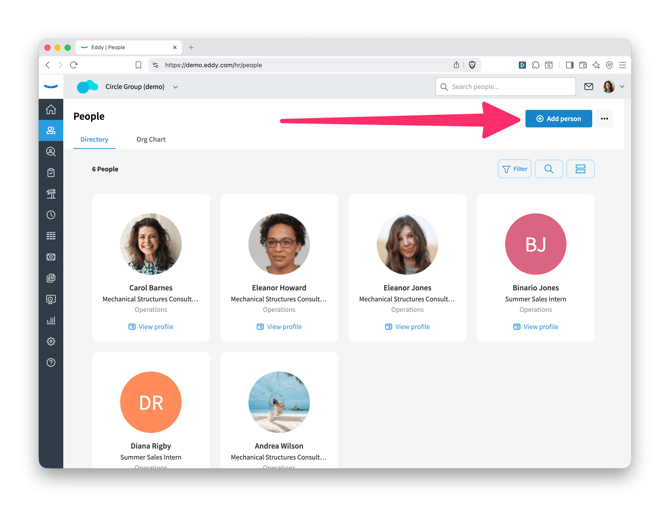
On the Add a person page, under What type of worker are you adding?, you'll see three options:
- New employee
- New independent contractor
- Someone from another company
Select Someone from another company.
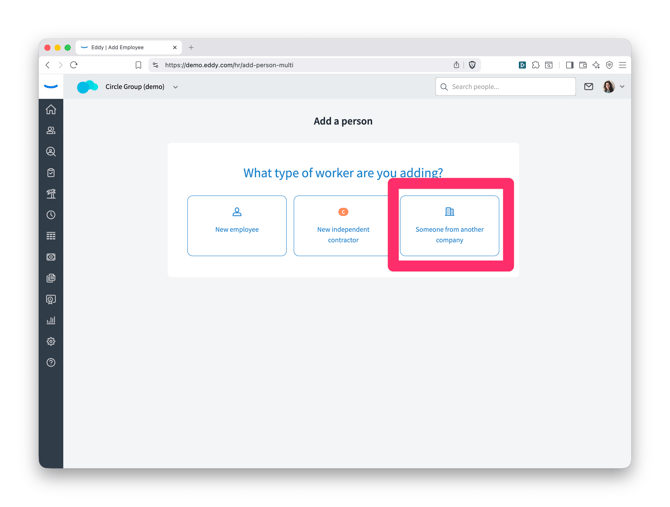
Step 2: Select the worker and worker type
A Select a person to add window opens.
In the Worker field, search by name. The list includes workers from the connected companies where you have an Owner role — active, inactive, and terminated — and each result shows the worker's name alongside their company.
Under What kind of worker will this person be?, choose Employee or Contractor. This reflects how the person will be classified in the company you're adding them to.
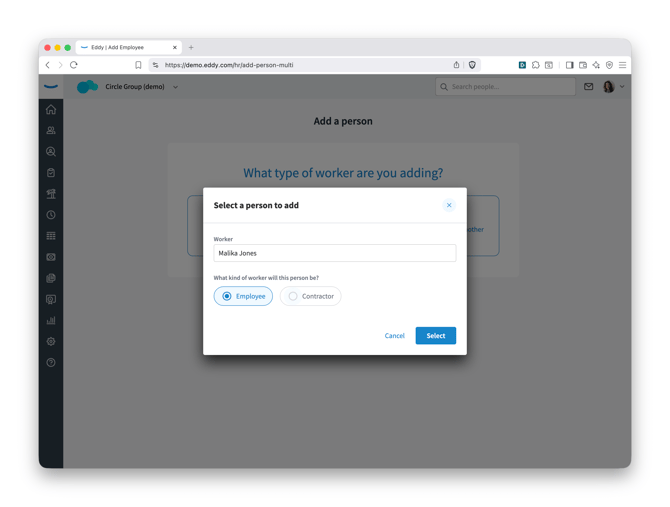 Once you've selected a worker, the Select button becomes available. Choose Select to continue.
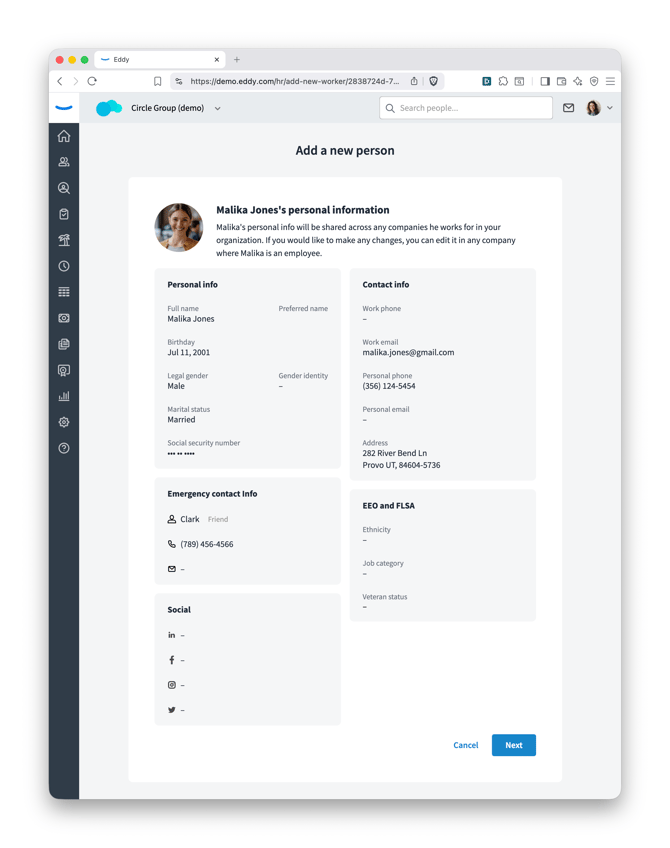
Step 3: Review the worker's information
The Add a new person page shows the personal information already on file for this worker — personal details, contact info, emergency contact, social links, and EEO and FLSA data. This information is shared across all companies the worker belongs to in your organization, and it can be edited from any company where they're an employee.
The worker's Social Security number is masked, and any fields without a value appear as a dash (—).
Review the details, then select Next.
Step 4: Add job details for the new company
A worker's job information is unique to each company, so on the Add [worker]'s work information for [company] page you'll enter the details for this specific job.
The following fields are required:
- Pay
- Starting date
- Job title
- Manager
- Department
- Location
- Employment type
These fields are optional:
- Employee ID
- Job category
Under Payroll, choose whether to Include in payroll or Exclude from payroll. Excluding someone from payroll means they won't be included in any payroll runs, including off-cycle runs, and their hourly PTO is calculated based on hours worked rather than paid hours. You can include them later at any time from the more actions menu on their profile page.
If you selected Contractor in Step 2, you'll complete the equivalent contractor job-detail fields instead.
When everything is filled in, select the button to add the worker to the company.
Step 5: Complete onboarding
Adding the worker takes you into Eddy's standard onboarding flow, where you can select new hire packets, add the worker to a pay period, and finish setup as usual. This flow handles both employees and contractors.
Because the worker already has an Eddy account, you won't see the usual step to invite them to Eddy HR — they don't need a new invitation. The one exception is if the worker never accepted their original Eddy invite; in that case, the invitation step still appears so they can finish setting up their account.
Frequently Asked Questions
Who can add someone from another company? Only users with the Owner role. The option is hidden for all other roles.
Does the worker lose their roles in other companies? No. Their existing roles in other companies are preserved. They're added to the new company as an employee by default. If the worker's employment was terminated or inactive in the other company, it remains terminated or inactive.
Which workers show up in the search? Workers from the connected companies where you have an Owner role, regardless of status — active, inactive, and terminated workers all appear. Each result shows the worker's name and their company.
Will the worker get a new welcome email? Usually no, since they already have an Eddy account. The one exception is if they never accepted their original invite — in that case, the invitation step still appears.