![cdccd4037784792b954880028bbf7390a34ca91e-2.png]](https://support.eddy.com/hs-fs/hubfs/cdccd4037784792b954880028bbf7390a34ca91e-2.png?height=40&name=cdccd4037784792b954880028bbf7390a34ca91e-2.png)
What is MFA?
Multi-Factor Authentication (MFA) is a security process that requires users to provide two or more verification factors to access a system, network, or application. These factors typically include:
-
Something You Know: A password or PIN.
-
Something You Have: A physical token, a mobile device, or an authenticator app.
-
Something You Are: Biometric data, such as fingerprints or facial recognition.
By requiring multiple forms of verification, MFA significantly enhances security by making it more difficult for unauthorized users to gain access, even if they have obtained a password.
To further enhance the security of your account, you will be required to enable two-step verification (also known as multi-factor authentication) as part of the sign-in process for your account access. This means that after entering your password, you will need to verify your identity through an additional step, such as receiving a code via SMS or using an authenticator app.
Set up MFA for your own account
Eddy requires you to set up MFA after you first log in.
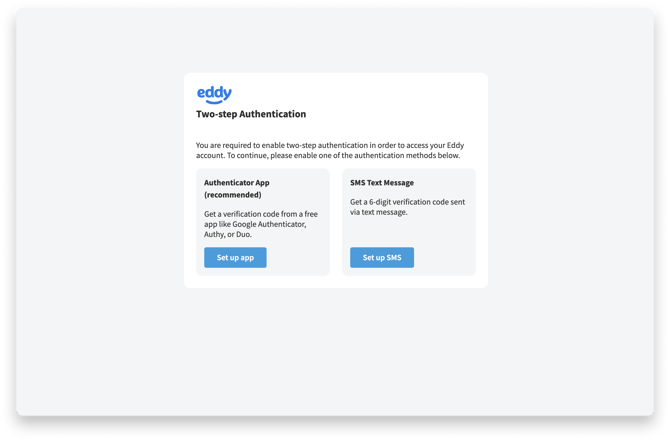
Option 1: Use an Authenticator App
With this option, you will be asked to scan the barcode on their screen with their mobile device’s camera.
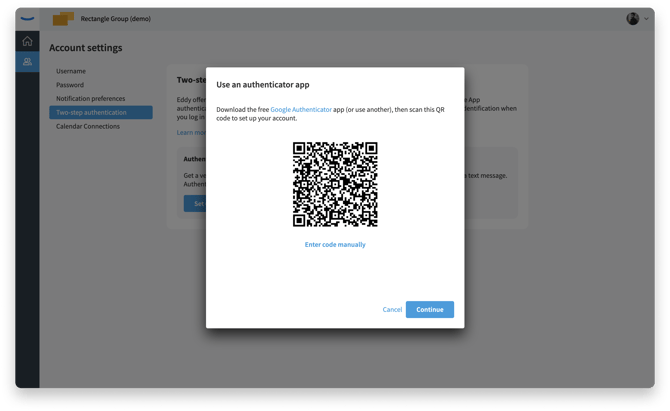
If you don't already have an authenticator app, you can click “Google Authenticator” to download Google's free authenticator app.
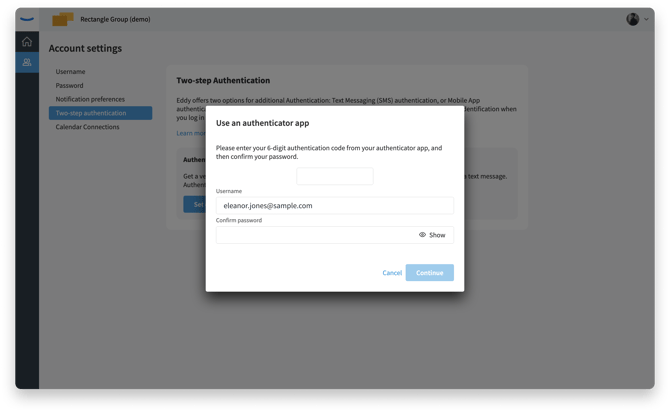
On the next page we ask you to confirm the code that is shown on your device to finish the setup. In order to set up Two-Step Authentication, we require you to re-enter your account password.
Option #2: Use Text messaging (SMS)
To set up SMS, click "Set up SMS" under the Two-Step Authentication section. You will be asked to enter your phone number.
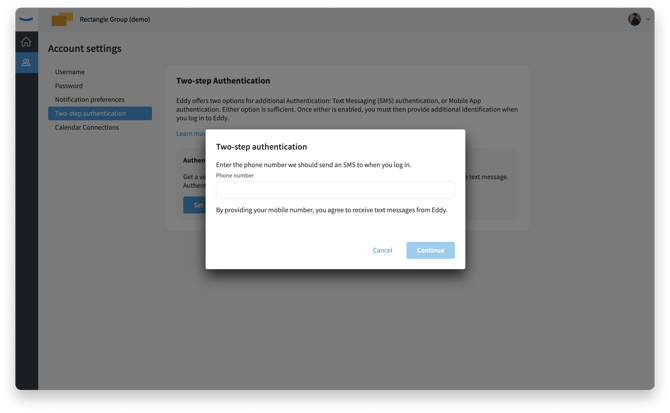
Eddy will send you a 6-digit verification code.
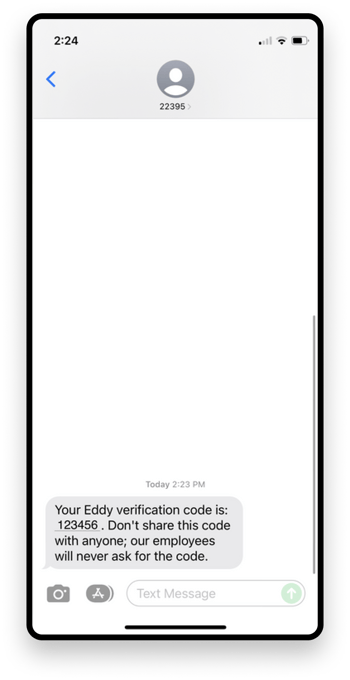
You must enter this unique verification code to confirm the correct phone number.
In order to setup Two-Step Authentication we require you to re-enter your account password.
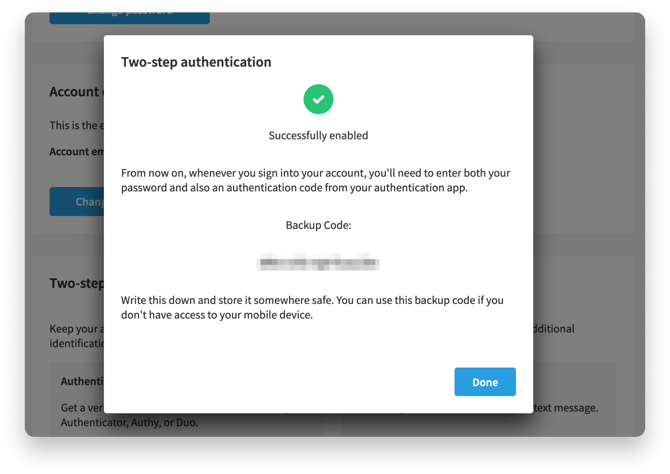
When MFA is enabled, we show this success message, and also give a backup code that can be used to unlock MFA if you lose access to your phone.
Biometric login
Eddy's mobile app supports biometric MFA, so once you have logged in you can use your mobile device's fingerprint reader or Face ID to authenticate your ID.
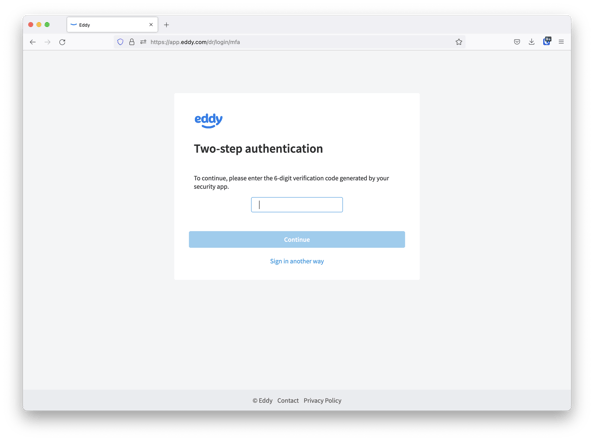
Once MFA is set up, Eddy will prompt you to enter your code for each new login.
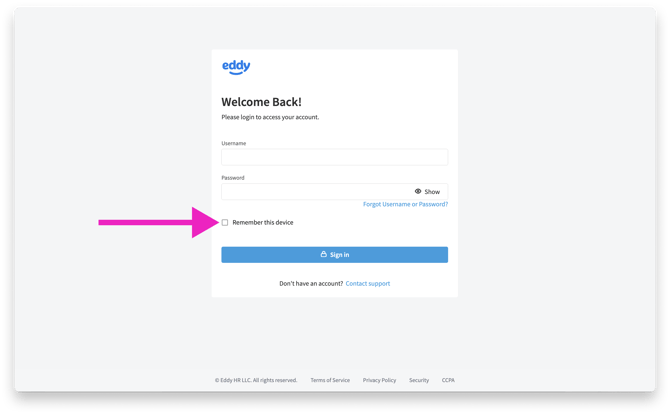
Remember this device
Check this box when you are on a device that only you have access to. When this box is checked, we will remember the device is trusted and not ask for MFA again for several months.