![cdccd4037784792b954880028bbf7390a34ca91e-2.png]](https://support.eddy.com/hs-fs/hubfs/cdccd4037784792b954880028bbf7390a34ca91e-2.png?height=40&name=cdccd4037784792b954880028bbf7390a34ca91e-2.png)
When you move a worker from one EIN (company) to another in Eddy, the only path is to terminate them under the old EIN and hire them under the new EIN. Because Eddy automatically pushes the termination status to Employee Navigator, terminating the worker before preparing Employee Navigator can cause Employee Navigator to read the change as a benefits termination and cancel coverage.
To prevent that, you must tell Employee Navigator about the pending EIN change first. Once Employee Navigator is set up to expect the transfer, the termination that syncs from Eddy is treated as an EIN change rather than a loss of coverage, and the worker stays active with their deductions and hire date intact.
This article walks through the full sequence: the steps to complete in Employee Navigator first, the terminate-and-hire steps in Eddy, and the final confirmation back in Employee Navigator. For Employee Navigator's authoritative guidance, see their article, Payroll – Transferring an employee between companies, which also includes an interactive demo of the transfer.
Before You Begin
Make sure the following are true before you start:
- You have admin access in both Eddy and Employee Navigator, or you are coordinating the Employee Navigator steps with your broker or Employee Navigator administrator.
- Both EINs exist as separate companies in Eddy, and the Employee Navigator integration is active for both.
- The new EIN has a matching benefit plan set up in Eddy. Deductions only carry over automatically when the new company has a plan ID that matches the worker's current elections.
- You have decided on the effective dates for the termination and hire so there is no gap in coverage.
Complete the Employee Navigator steps below before you terminate the worker in Eddy. This is the step that prevents Employee Navigator from processing the incoming termination as a benefits cancellation.
Part 1 — In Employee Navigator (Complete First)
Open the worker's record in Employee Navigator and go to Profile. Then complete the three steps below, which mirror Employee Navigator's interactive demo.
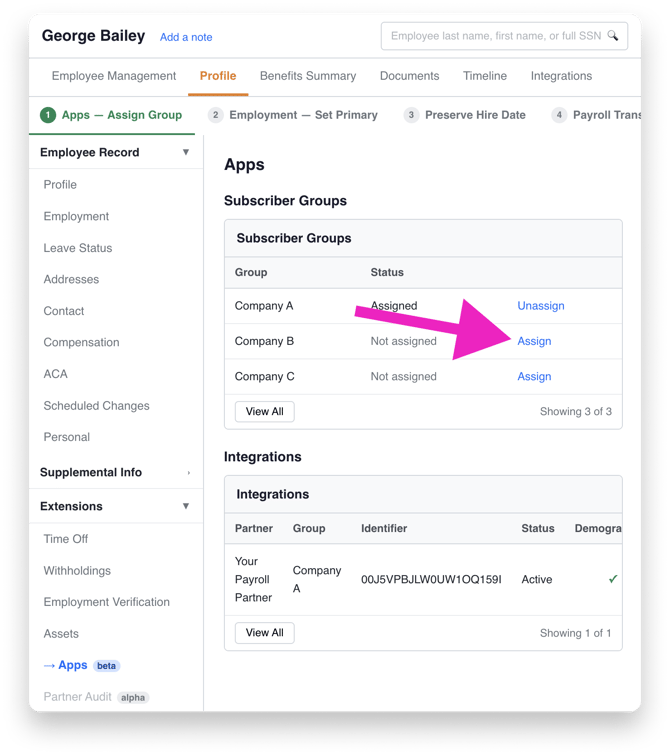
- Assign the new subscriber group. Under the Employee Record, open the profile tab and click on Apps. In the Subscriber Groups table, click Assign next to the new company so the worker is associated with the destination EIN's group.
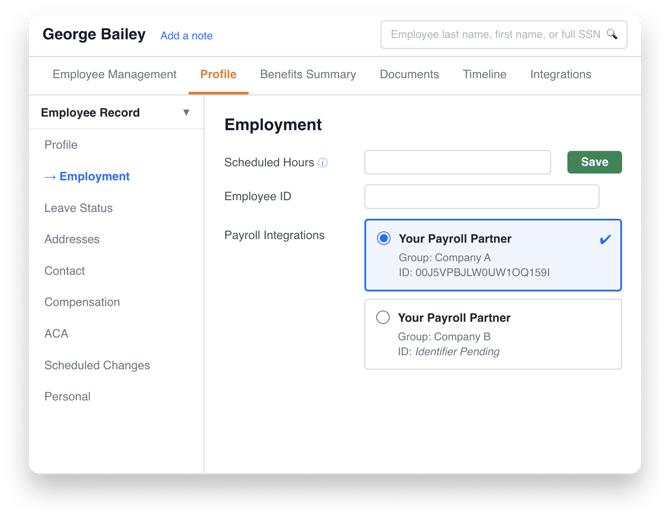
- Set the new company as the primary. Go to Employment. Under Payroll Integrations, select the new company as the Primary, then click Save. The new company's integration ID may show as Identifier Pending until Eddy syncs the new payroll record — this is expected.
- Preserve the hire date. When the Preserve Hire Date? prompt appears, choose Yes to keep the worker's current hire date for eligibility purposes. This keeps their eligibility window intact across the EIN change.
Leave the worker active in Employee Navigator. Do not terminate them there.
Part 2 — In Eddy
With Employee Navigator prepared, complete the move in Eddy.
- Hire the worker under the new EIN. Add the worker to the new company in Eddy. See this help article for instructions: https://support.eddy.com/knowledge/how-to-hire-a-worker-from-another-company
- Terminate the worker under the old EIN. Open the worker's profile under the original company and process the termination. See https://support.eddy.com/knowledge/how-to-terminate-an-employee
- Confirm a benefit deduction plan exists in Eddy in the new company with a matching benefit plan ID so deductions can carry over automatically.
- Use effective dates that align the termination and hire so coverage is continuous.
Part 3 — Back in Employee Navigator
Confirm the payroll transfer. Once Eddy's new payroll record syncs (which should happen within minutes if not seconds), the previously pending identifier populates and Employee Navigator completes the transfer.If the record instead shows a termination or a coverage end date, stop and contact your broker or Employee Navigator administrator before the change processes.
FAQ
Will the worker's benefit deductions carry over to the new EIN? Yes, as long as the new EIN has a matching benefit plan set up in Eddy. If there is no matching plan, deductions will not carry over automatically.
Will the worker's hire date change? Only if you allow it. At the Preserve Hire Date? prompt in Employee Navigator, choose Yes to keep the original hire date for eligibility purposes.
Does the worker need to re-enroll in benefits? No. When the transfer is completed correctly and a matching plan exists in the new EIN, coverage continues without re-enrollment.
Why does the new company's integration ID show as "Identifier Pending"? The new EIN does not have a synced payroll identifier yet. It populates automatically once Eddy syncs the new payroll record, which completes the payroll transfer in Employee Navigator.
What if I did this out of order and my employee has been inadvertently terminated in Employee Navigator? This is fixable. Follow these three steps:
- Go to the employee's Profile in EN → find the Termination Actions box on the right-hand side → click Undo Termination. This reinstates the employee.
- Click the employee's Employment link → check off the Payroll Integrations box for their new company → click Save.
- Go to your Payroll tab → Integration Health dashboard → find the employee's Inbound Demographics category → Actions icon → Pull from payroll.