![cdccd4037784792b954880028bbf7390a34ca91e-2.png]](https://support.eddy.com/hs-fs/hubfs/cdccd4037784792b954880028bbf7390a34ca91e-2.png?height=40&name=cdccd4037784792b954880028bbf7390a34ca91e-2.png)
Before You Create Templates
Before setting up recurring schedules and templates, make sure:
-
Shift Scheduling is enabled and workers are added to the location’s schedule.
-
You’ve already built at least one week of shifts that looks close to your “typical” schedule.
-
You know which patterns repeat (for example: same schedule every week, every other week, or by day of week).
It’s usually easiest to create templates from a real, working schedule rather than starting from a blank grid.
Create a Template from an Existing Week
The fastest way to create a template is to take a week that already looks right and save it. Go to the Scheduling tab and select the location you want to work with. Navigate to the week you want to save.
Review the schedule to confirm it represents a pattern you want to reuse (for example, a standard “normal week”). Find the Templates button in the top right corner.
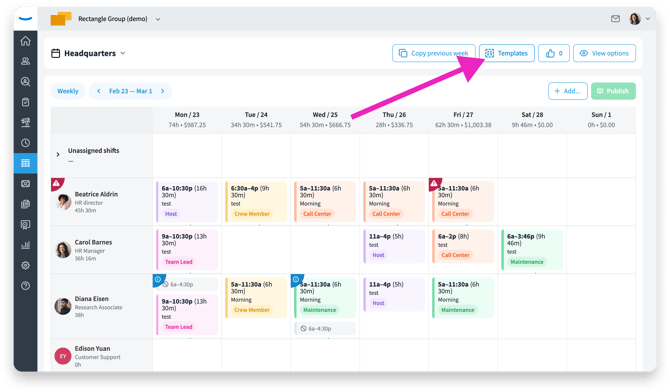
-
Select Save this week as template.
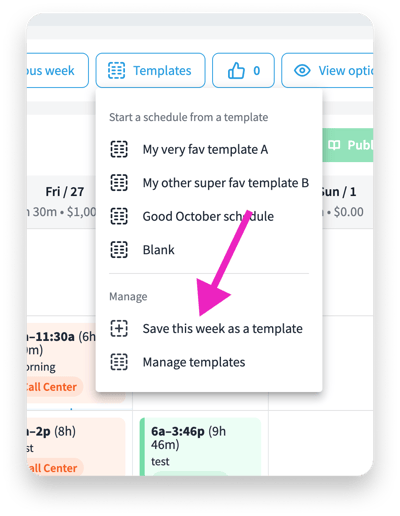
Give the template a clear name such as “Front Desk – Normal Week” or “Kitchen – Summer Weekdays.” Then click Save. You’ve now created a template you can apply to future weeks for that location.
Apply a Template to a Future Week
Once you have templates, you can quickly create schedules for upcoming weeks.
-
In the Scheduling tab, go to the location you want to schedule.
-
Navigate to the future week you want to fill.
-
Click on the Templates button.
-
Select the template you want to use from the list.
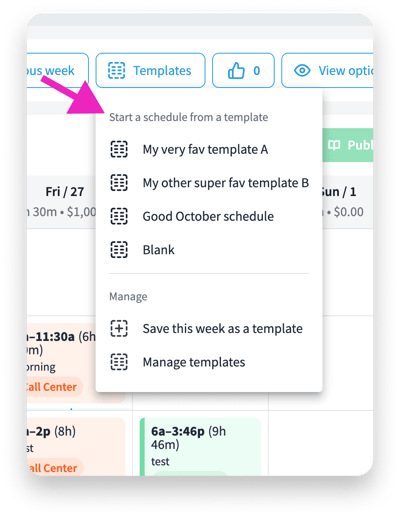
The system will copy all shifts from the template into the selected week. You can then review and adjust as needed before publishing. Any existing shifts will be removed or replaced by the shifts in the template.
Edit a Template for a New Season or Pattern
Over time, your “normal” schedule might change (for example, summer vs. winter hours). Instead of recreating templates from scratch, you can essentially clone them.
-
Apply the template you want to clone.
-
Make edits to the shifts as needed.
- Save the updated week as a new template
Give seasonal or special templates names that make it obvious when they should be used, such as “Retail – Holiday Season” or “Clinic – Summer Schedule.”
Copy Last Week’s Schedule
If your schedule rarely changes, a “copy last week” option can be even faster than templates.
-
In the Scheduling tab, navigate to the new week you want to build.
-
Click Copy last week (or a similar control).
-
Review the list of shifts that will be copied.
-
Confirm to apply.
Use this approach when your schedule is very consistent and only needs minor tweaks each week.
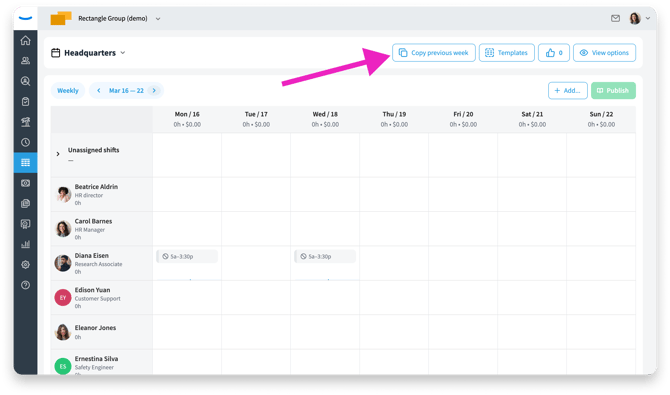
Copy last week’s schedule when only small adjustments are needed.
Best Practices for Templates and Recurring Schedules
To get the most value from templates and recurrence:
-
Create templates only for patterns you use frequently.
-
Keep template names specific (location + team + pattern).
-
Review templates at least a few times a year to ensure they still match how you operate.
Clear patterns make it easier for managers to maintain schedules and for employees to understand what to expect.
Next Steps
Once your recurring schedules and templates are in place, you can:
- Turn on Let Employees Swap and Claim Shifts so your team can help cover changes without rebuilding templates every time.
Together, these tools let you start from a solid, reusable schedule and still adapt quickly when things change.