![cdccd4037784792b954880028bbf7390a34ca91e-2.png]](https://support.eddy.com/hs-fs/hubfs/cdccd4037784792b954880028bbf7390a34ca91e-2.png?height=40&name=cdccd4037784792b954880028bbf7390a34ca91e-2.png)
Before You Enable Swaps and Offers
Before you let employees swap or claim shifts, make sure:
-
Shift Scheduling is turned on for the location.
-
Workers are added to the location’s shift schedule and assigned to the correct time clock policy.
-
You have a clear idea of when swaps and offers are allowed (for example: minimum notice, blackout dates, or required skills).
Having these rules in mind will help you configure settings and communicate expectations to managers and employees.
Turn On Shift Swaps and Shift Offers
You control whether employees can swap or offer shifts at the schedule level.
-
Go to Admin Settings > Time & Attendance > Shift Schedules.
-
Open the shift schedule for the location you want to configure.
-
In the Edit schedule times section, review these options:
-
Allow shift swaps – lets employees request trades with each other.
-
Allow shift offers – lets employees offer a shift they can’t work to other qualified workers.
-
-
Turn on the toggles for the options you want to allow.
-
For each option, turn on Require manager approval if you want a manager to approve changes before they become final.
-
Click Save to update the schedule.
You can configure different locations differently—for example, allowing swaps and offers in one schedule while keeping another location more locked down.
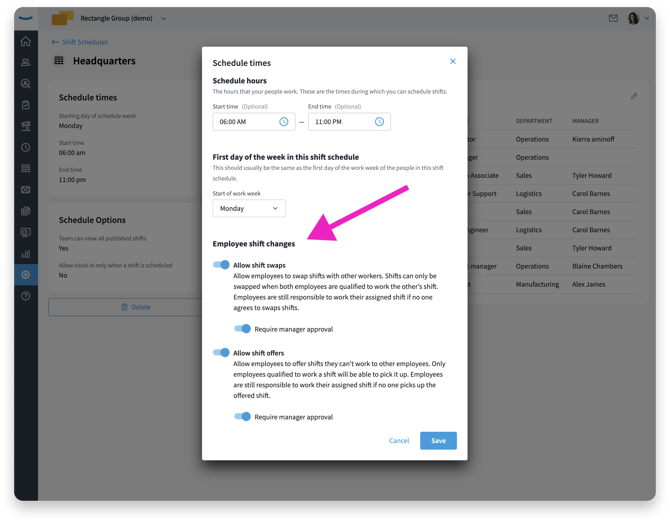
Choose which types of shift changes employees can request and whether manager approval is required.
How Shift Swaps Work (Employee View)
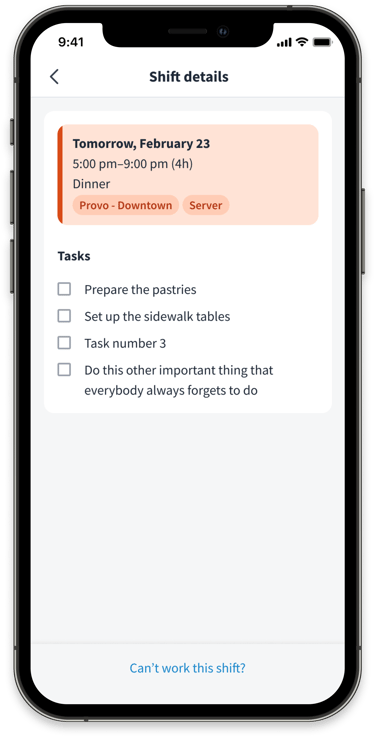
When shift swaps are enabled, employees can request to trade one of their assigned shifts with another worker who is qualified to work it. The employee opens the Scheduling view (on desktop or in the mobile app) and selects a shift they’re currently assigned to. The shift will have a link Can't work this shift? that will bring up the swap or offer options.
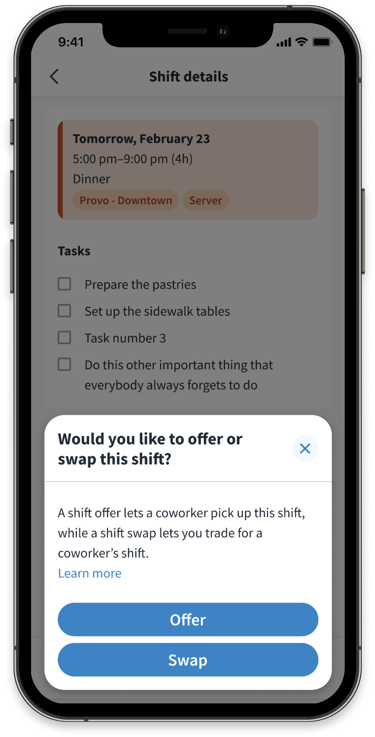
They choose Swap.
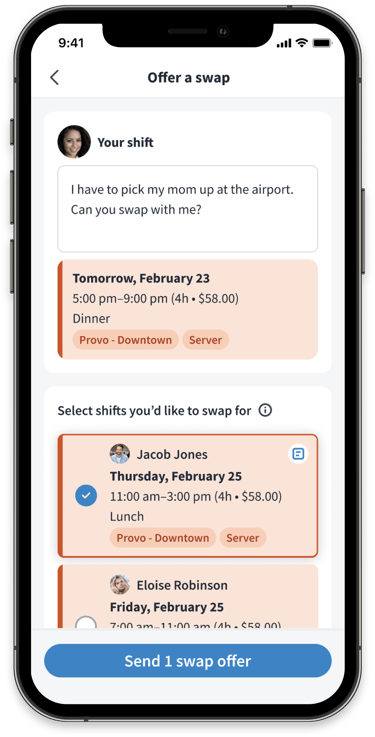
The worker must add a note to explain why they need to swap the shift. A list of eligible coworkers appears—only workers who:
-
-
Are qualified for the role, and
-
Are not already scheduled for an overlapping shift.
-
The employee selects one or more coworkers to send the swap request to and submits it.
The coworkers receive a notification and can review the request from their own schedule.
How Coworkers Respond to Swap Requests
When an employee receives a swap request, they can choose whether to take the shift. The coworker views the Pending swap request in their notifications (push notification and email).

They review the shift details (date, time, role, and location). They can choose Accept swap or Decline.
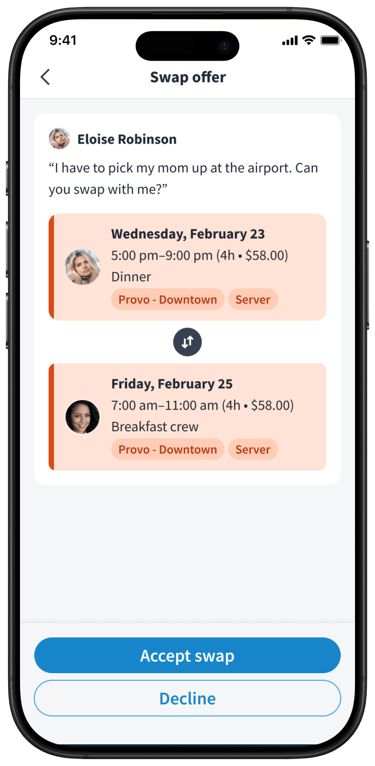
What happens next depends on your settings:
-
If manager approval is not required, accepting the swap updates the schedule immediately—each worker gets the other’s shift.
-
If manager approval is required, the acceptance sends the request to the manager for a final decision.
If no one accepts the swap, the original employee remains responsible for the shift.
Manager Review and Approval of Swaps
If you require manager approval for swaps, managers review and finalize changes before the schedule is updated. The manager gets a notification. In addition, these approvals show up on the manager's home screen in Eddy.

They see a list of Pending swap requests.
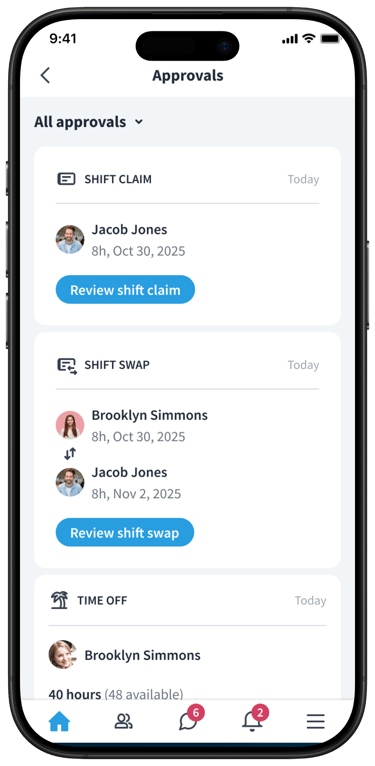
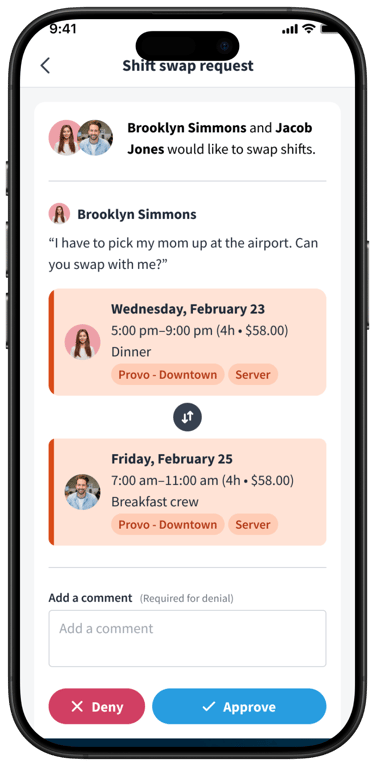
For each request, the manager reviews:
-
-
The original shift and the proposed new assignments.
-
Any conflicts (overtime risk, overlapping shifts, or policy issues).
-
The manager clicks Approve or Deny. If approved, the schedule updates and both employees are notified. If denied, the original assignments remain, and the requesting employee is still responsible for their shift.
How Shift Offers Work (Employee View)
Shift offers are different from swaps—rather than trading with a specific coworker, employees put their shift “up for grabs” so another qualified worker can claim it.
The employee opens the Scheduling view (on desktop or in the mobile app) and selects a shift they’re currently assigned to. The shift will have a link Can't work this shift? that will bring up the swap or offer options. They choose Offer shift option.
Before offering the shift, the worker enters a note. The shift is marked as Offered and becomes visible to eligible coworkers in an available-shifts list.
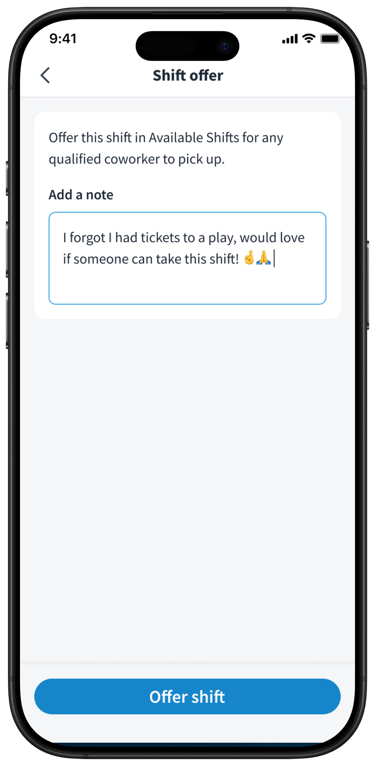
Until someone claims the shift and any approvals are completed, the original employee is still responsible for working it.
How Coworkers Claim Offered Shifts
When shift offers are enabled, eligible employees can see which shifts are available to claim. A coworker opens their schedule or Available shifts list. Offered shifts appear with a clear label (for example, “Swap Offers” or “Open shift”).
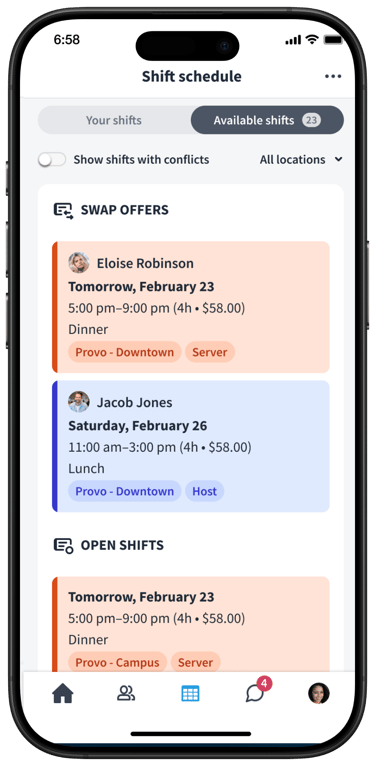
The employee selects a shift and clicks Claim shift.
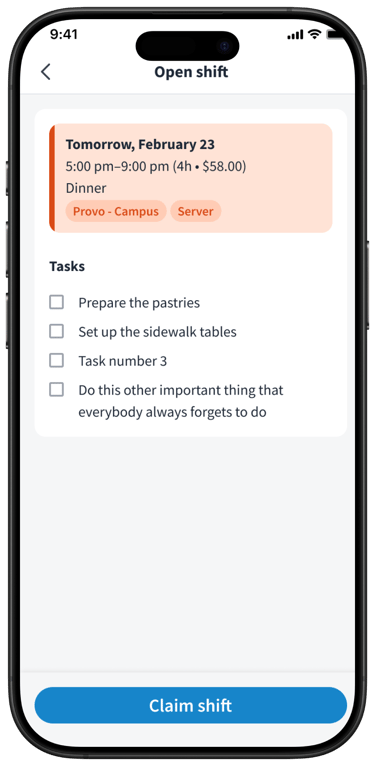
If manager approval is not required, claiming the shift assigns it to the new worker immediately and notifies both employees. If manager approval is required, the claim is sent to the manager for review.
If no one claims the shift, the original employee remains responsible for working it.
Manager Review and Approval of Shift Offers
For locations where you require manager approval on shift offers, managers decide whether a claimed offer should be finalized. The manager views Pending shift offer claims in the Scheduling or Requests area.
Best Practices and Next Steps
To get the most out of swaps and shift offers:
-
Set clear rules for when swaps and offers are allowed (for example, minimum notice or blackout days).
-
Require manager approval if you need tighter control over coverage and overtime.
-
Encourage employees to check their schedule regularly and respond quickly to requests.
-
Review the schedule for frequent changes that might signal staffing or availability issues.
Next, you may want to review:
-
Create and Publish Your First Shifts – if you’re still learning the basics of building schedules.
-
Managing Recurring Schedules and Templates – to reduce manual work once your swap and offer flows are in place.