![cdccd4037784792b954880028bbf7390a34ca91e-2.png]](https://support.eddy.com/hs-fs/hubfs/cdccd4037784792b954880028bbf7390a34ca91e-2.png?height=40&name=cdccd4037784792b954880028bbf7390a34ca91e-2.png)
Shift Scheduling is a tool in Eddy that lets you build and manage work schedules for your team. It shows you who is working each day, where they are scheduled, and which role they are working in.
Instead of tracking shifts in a spreadsheet or on paper, you can create and adjust schedules directly in Eddy and share them with employees in just a few clicks. This makes it easier to avoid coverage gaps, reduce scheduling errors, and keep everyone informed.
If your team works different hours, locations, or roles throughout the week, Shift Scheduling gives you a clear calendar view of your staffing so you can plan ahead and react quickly to changes.
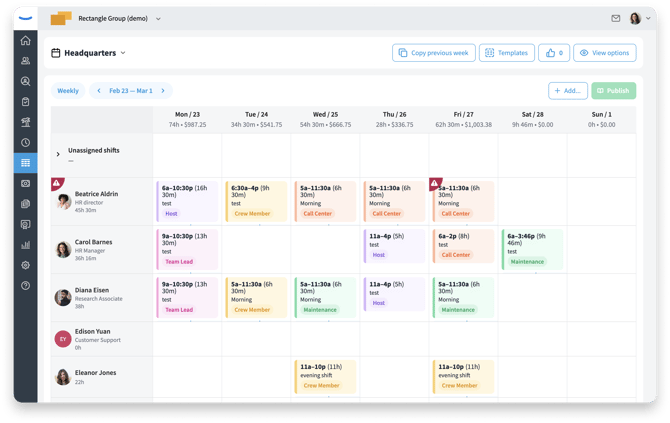
See who is scheduled each day so you can quickly spot gaps and overlaps.
Key Terms and Concepts
To get the most out of Shift Scheduling, it helps to understand a few basic terms:
-
Location – The place where work happens, like a store, restaurant, job site, or office.
-
Position/Role – The job someone is scheduled to work, such as Server, Cashier, Nurse, or Technician.
-
Shift – A block of time assigned to a person, including a start time and end time. Each shift can also include breaks.
-
Breaks – Meal or rest periods built into a scheduled shift. Breaks can be paid or unpaid depending on your policies.
-
Coverage – Having the right number of people scheduled at the right times for a location or role.
-
Templates/Recurring patterns – Saved schedules you can reuse so you don’t have to rebuild the same shifts each week.
These concepts appear throughout the scheduler and in related settings, so it is helpful for both admins and managers to be familiar with them.
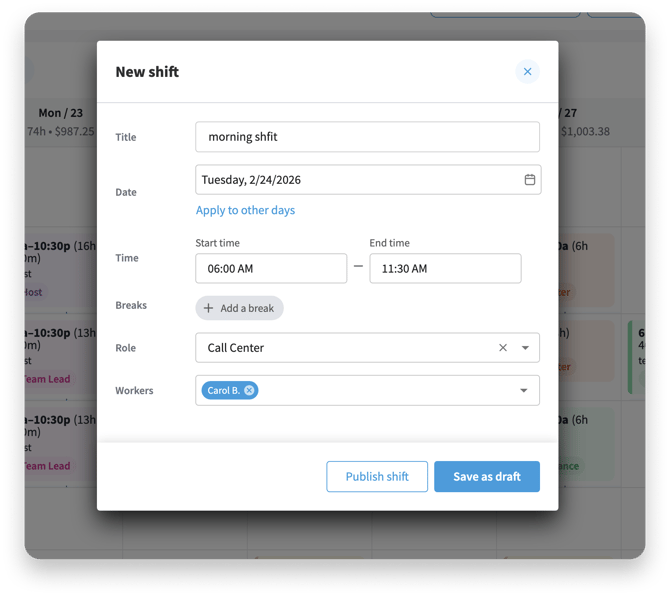
Each shift includes where, when, and what role the employee is working, plus any breaks.
Roles and Permissions
Different people on your team will use Shift Scheduling in different ways. Your access depends on your role:
HR Admins
-
Turn Shift Scheduling on or off for the company.
-
Configure global scheduling settings and rules.
-
View and edit schedules for all locations and teams.
Scheduling Admin
-
Can View and edit schedules for all locations and teams.
- This role can be setup with a restriction to one or more specific locations
Managers
-
Can be given permissions to create, edit, and publish shifts for the employees they manage.
-
Approve or deny swap and open-shift requests (if those features are enabled).
-
Monitor coverage and make adjustments when employees are unavailable.
Employees
-
View their upcoming and past shifts.
-
Receive notifications when new schedules are published or updated.
-
Request swaps or claim open shifts when allowed by company settings.
You can adjust who has access to scheduling features in your account settings so your scheduling process its the way your business runs.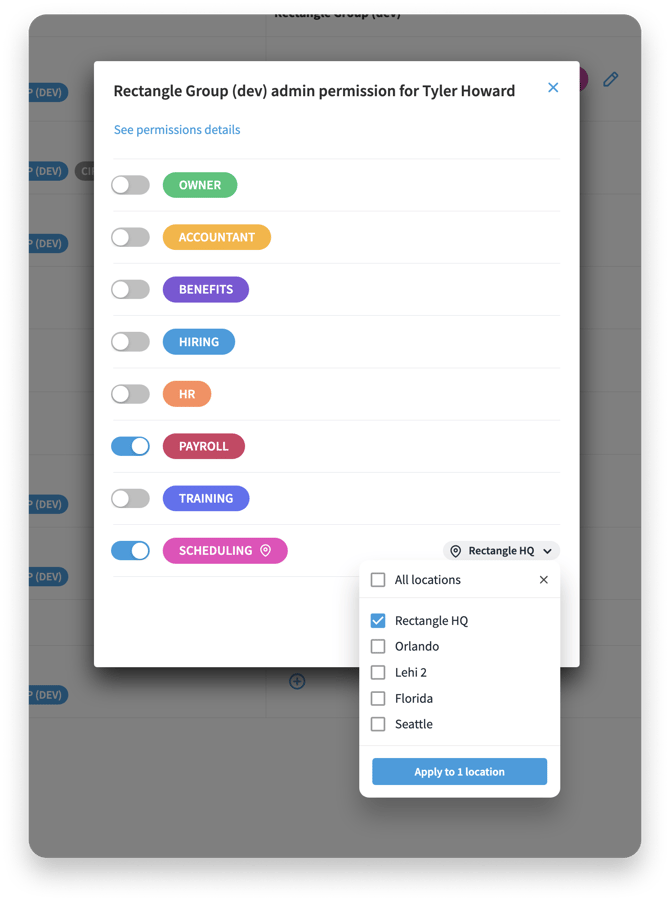
How Shift Scheduling Connects to Time Tracking
Shift Scheduling works closely with Time Tracking so you can compare what was planned with what actually happened.
When you create a shift for an employee, that shift can act as a guide for when they should clock in and out. Employees can still clock in and out as usual, but you can easily see if someone started late, left early, or worked longer than planned.
Because shifts can include breaks, your scheduled hours give you a more accurate starting point for total hours and potential overtime. When actual time punches differ from the schedule, you can review and correct them in Time Tracking before running payroll.
A worker must be connected to a time clock before they can be added to Shift Scheduling.
How Shift Scheduling Connects to Time Off
Shift Scheduling also integrates with your Time Off tools so you can avoid scheduling people when they are not available.
When time off is requested and approved, those days will appear in the scheduler for that employee. This makes it easy to see who is out before you build or adjust the schedule.
If you try to schedule someone during approved time off, you may see a warning or conflict indicator. This helps you catch mistakes before you publish the schedule and prevents last-minute scrambles to fill shifts. Keeping Time Off requests up to date gives you a more reliable picture of your staffing.
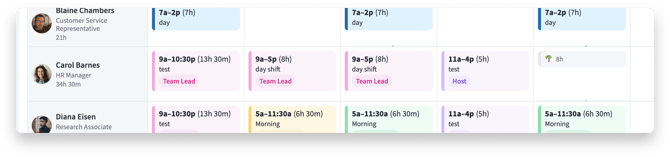
Approved time off appears directly on the schedule so you don’t double-book employees.
What You Can Do Next
Once you understand the basics, you’re ready to start building schedules. Use these next articles to get set up and schedule your first shifts:
These guides will walk you through enabling Shift Scheduling, creating shifts, and using more advanced features like swaps and open shifts.